Attention: Sign up to get 100 credits for free!
AI Inpainting - Select & Edit Multiple Regions at Once
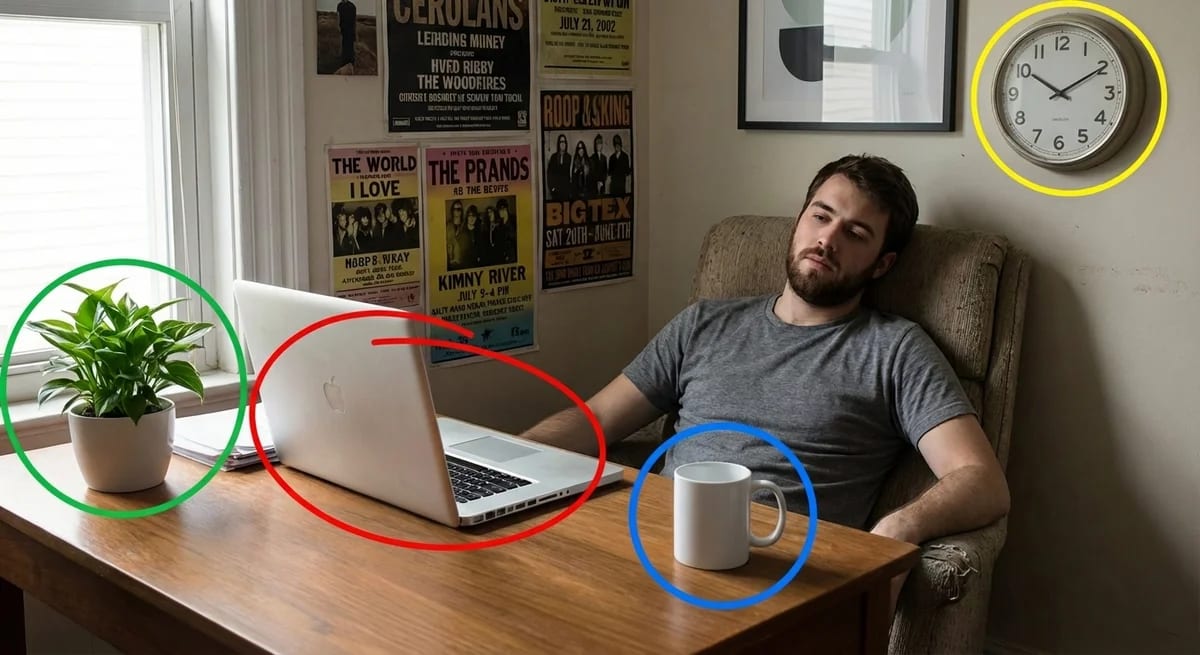
Select multiple areas with circles, rectangles, or freehand brush. Describe each change once, and let AI edit them all simultaneously.
50-80 credits per generation
Try AI Inpainting Now
Upload your image, mark areas you want to modify, and describe the changes for each region.
AI Inpainting Examples - See the Precision
Real examples of multi-region inpainting showing what our tool can achieve
Drag the slider to compare before and after
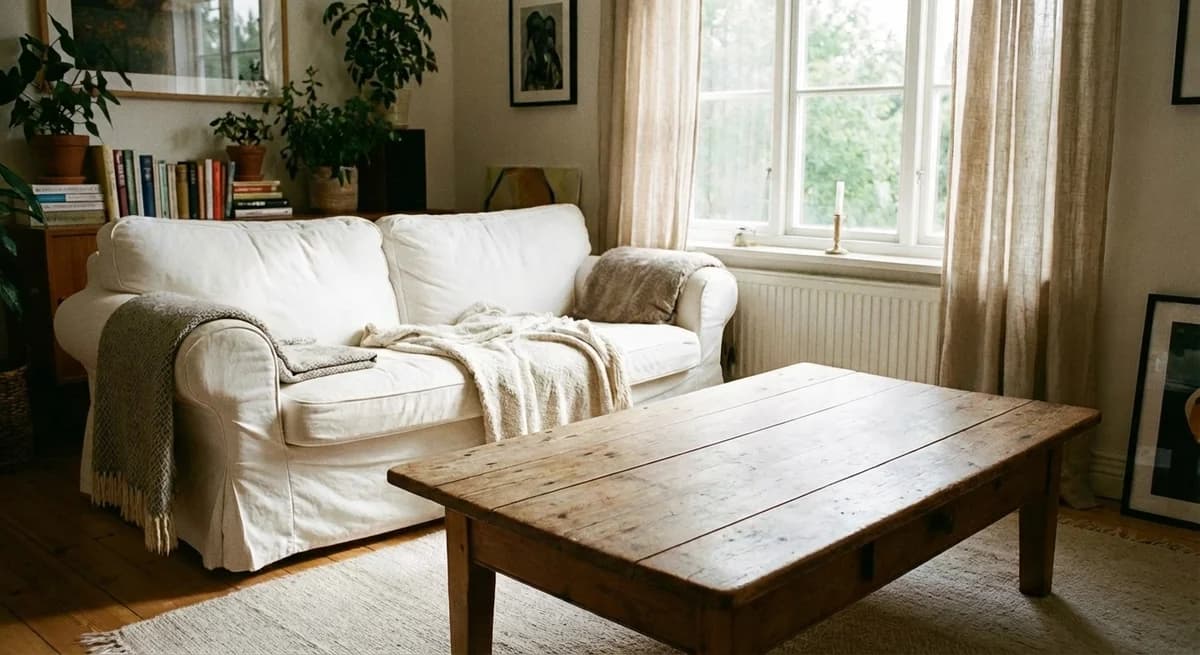
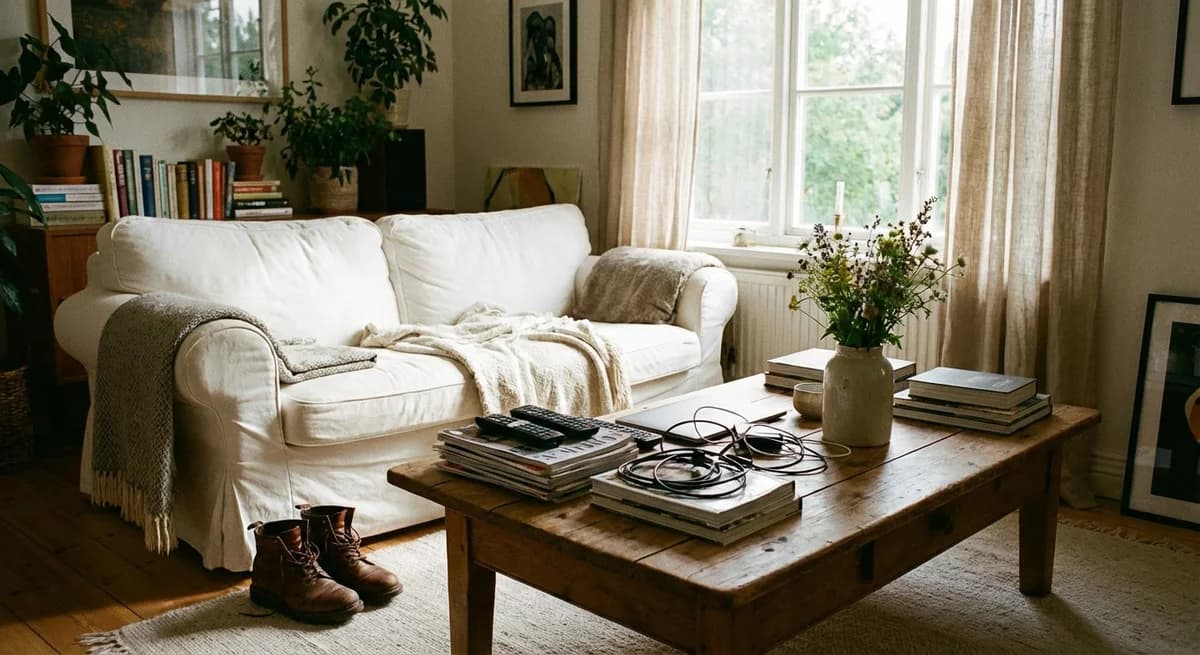
Object Removal
Clean background by removing unwanted objects
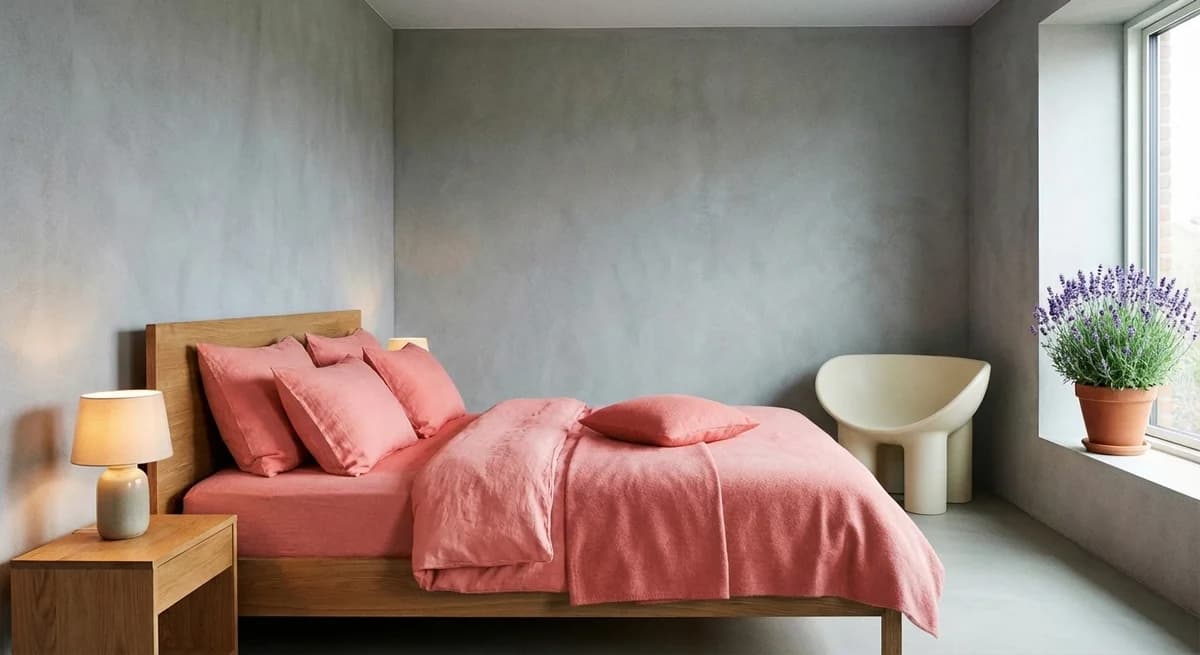
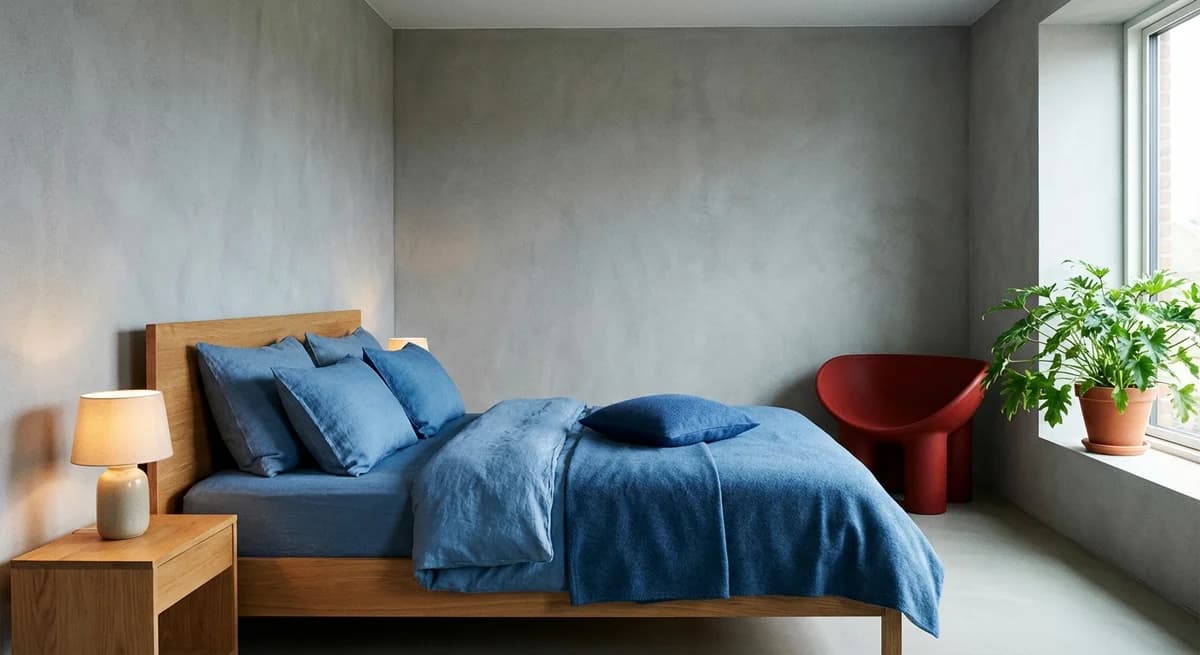
Color Change
Change colors in specific areas precisely
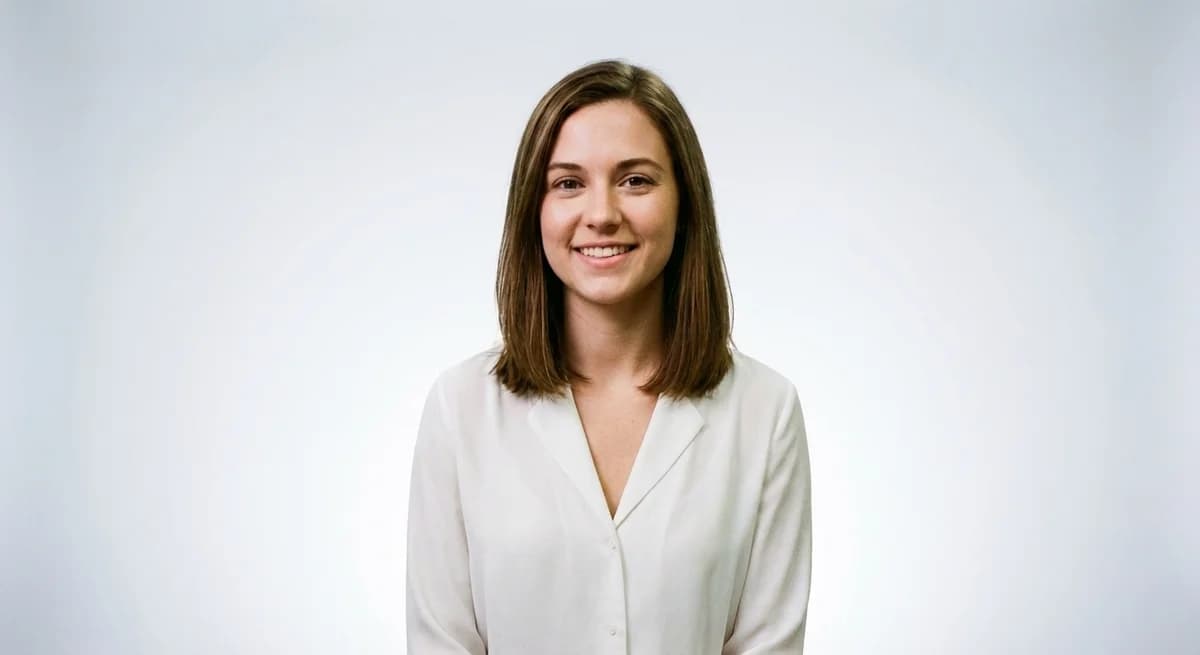
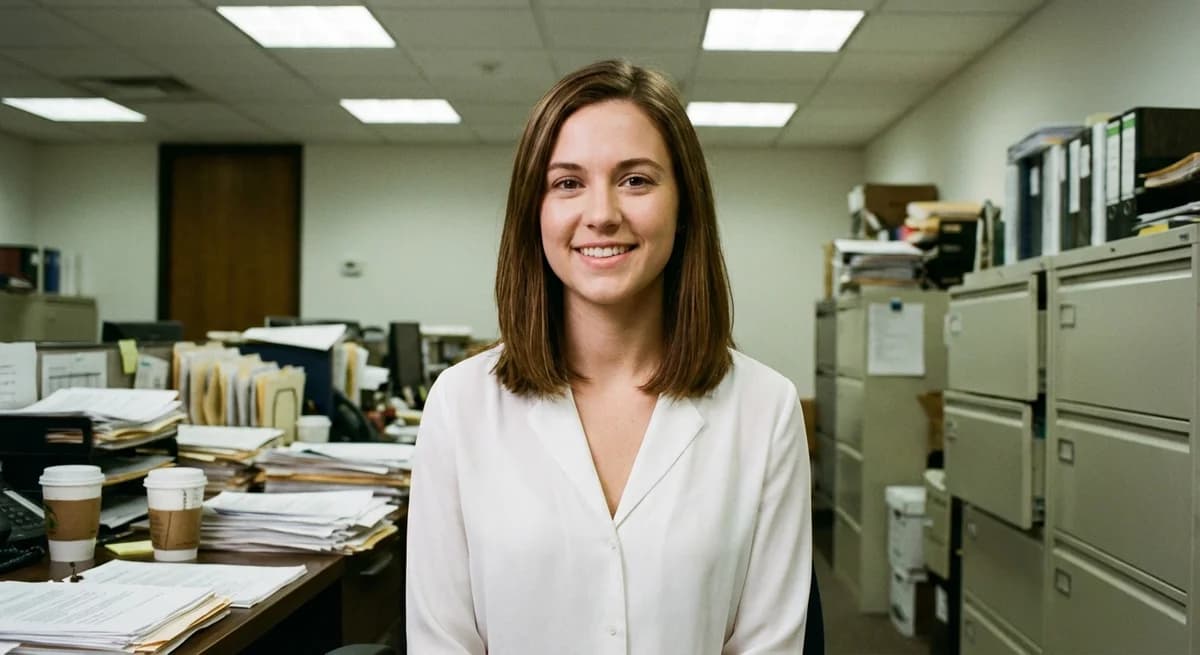
Background Modification
Edit background while preserving subject
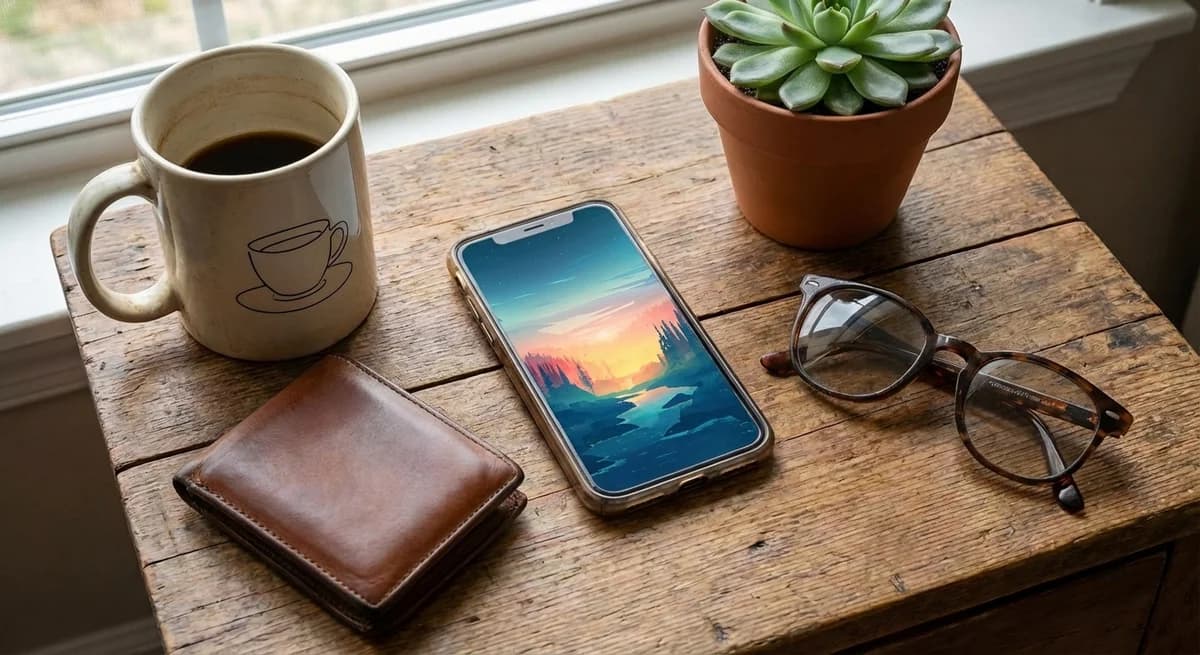

Multi-Region Edit
Multiple simultaneous changes in one generation
Our AI inpainting tool revolutionizes selective image editing. Unlike traditional inpainting tools that require you to brush over areas one at a time, our AI inpainting circle selection approach lets you mark multiple regions simultaneously. Each region gets a unique color, and you can describe different modifications for each - the AI inpainting system handles them all in one generation. Perfect for AI inpainting tasks like removing objects, changing colors, or modifying backgrounds. For simpler edits that need faster turnaround, try GPT-Image-1.5 Fast AI Editor which completes single-region edits in 15-30 seconds. Use our inpaint online tool for complex multi-region AI inpainting transformations powered by Gemini 2.5.
How AI Inpainting Works - 3 Simple Steps
Our AI inpainting multi-region approach saves time compared to editing areas one by one
Upload Your Image
Upload the photo you want to edit. Supports JPG, PNG, and WebP formats.
Circle Select Regions
Draw circles around areas you want to modify. Each gets a unique color for easy identification.
Describe & Generate
Write instructions for each colored region and generate. All edits happen simultaneously.
Why Our AI Inpainting Tool is Different
Traditional tools make you edit one region at a time. We handle multiple regions simultaneously.
Multi-Region AI Inpainting Selection
Edit 2-5 areas in one AI inpainting generation. No need to repeat the process for each region - mark them all at once with AI inpainting technology.
Color-Coded AI Inpainting Precision
Each region gets a unique color marker. Clear visual distinction makes it easy to specify different changes for AI inpainting edits.
Batch AI Inpainting Instructions
Describe all changes at once, not one-by-one. Tell the AI what to do with each colored region in a single AI inpainting prompt.
Powered by AI Inpainting & Gemini 2.5
Latest AI model delivers superior understanding of context and generates natural-looking AI inpainting edits.
Who Uses AI Inpainting
Professionals across industries use our AI inpainting tool to save time and improve results
Product Photographers
Fix product details without reshoot using AI inpainting. Change colors, remove reflections, adjust lighting - all in seconds with AI inpainting.
Social Media Creators
Quick AI inpainting edits for content. Remove unwanted objects, change backgrounds, enhance specific areas for viral posts.
Designers
Rapid iteration on compositions with AI inpainting. Test color variations, modify elements, and explore ideas without starting over.
E-commerce
Bulk product image adjustments using AI inpainting. Edit multiple product photos efficiently with consistent quality.
Flexible Credit Packages
Choose the package that fits your editing workflow
55 images package
- GPT-Image-1: 55 images (10₵/image)
- Nano Banana: 27 images (20₵/image)
- Nano Banana Pro: 11@1K / 9@2K / 6@4K (50-80₵/image)
- 550 credits total
- 6+ artistic styles
- Up to 4K resolution (4096×4096)
- Commercial usage rights
120 images package
- GPT-Image-1: 120 images (10₵/image)
- Nano Banana: 60 images (20₵/image)
- Nano Banana Pro: 24@1K / 20@2K / 15@4K (50-80₵/image)
- 1200 credits total
- 6+ artistic styles
- Up to 4K resolution (4096×4096)
- Commercial usage rights
300 images package
- GPT-Image-1: 300 images (10₵/image)
- Nano Banana: 150 images (20₵/image)
- Nano Banana Pro: 60@1K / 50@2K / 37@4K (50-80₵/image)
- 3000 credits total
- 6+ artistic styles
- Up to 4K resolution (4096×4096)
- Commercial usage rights
Frequently Asked Questions About AI Inpainting
Everything you need to know about our inpainting tool
What is AI inpainting?
AI inpainting is a technique that uses artificial intelligence to edit specific regions of an image. Unlike traditional tools that require manual brush strokes, AI inpainting understands context and generates natural-looking modifications that blend seamlessly with the surrounding content. Our tool uses advanced AI (powered by Gemini 2.5) to intelligently fill, modify, or replace selected areas based on your text descriptions.
How is circle selection different from brush selection?
Traditional brush selection requires you to manually paint over the area you want to edit, which can be imprecise and time-consuming. Our circle selection method lets you draw simple circles around areas of interest - the AI understands the context and applies changes to the relevant region. This is especially powerful when editing multiple areas: each circle gets a different color, allowing you to specify different changes for each region in a single generation.
How many regions can I edit at once?
You can select up to 5 different regions in a single image, each marked with a unique color (red, blue, green, yellow, purple). For each region, you can provide specific instructions about what changes you want. This batch processing approach saves significant time compared to editing regions one by one.
What image formats are supported?
Our AI inpainting tool supports all common image formats including JPG, JPEG, PNG, and WebP. For best results, we recommend using high-quality source images. The tool automatically optimizes your image for processing while maintaining quality.
Can I use this for commercial projects?
Yes, all images generated through our AI inpainting tool are yours to use for both personal and commercial projects. We recommend keeping records of your original images and the modifications made for your own documentation.
How accurate is the inpainting?
Our AI inpainting achieves professional-quality results in most cases. The accuracy depends on factors like image complexity, the clarity of your instructions, and the nature of the edit. Simple edits like color changes or object removal typically yield excellent results. For complex edits, providing detailed descriptions helps the AI understand your intent better.
🔗 Related AI Tools
Explore more creative AI-powered image generators and style transformation tools
Nano Banana Pro
NEW!Studio-quality AI image generator powered by Google Gemini 3 Pro with 2K/4K resolution support
Anime Hybrid Portrait Generator
NEW!Blend realistic photos with Japanese anime elements - companions, magical objects, energy effects
Chibi Plush Generator
PopularTransform photos into adorable chibi plush toy style with soft textures
Character Figurine Generator
PopularCreate detailed character figurines with professional 3D modeling aesthetic
Pop Art Vector Portrait
NEW!Transform photos into vectorized flat-color pop art with Andy Warhol aesthetics
Bottle Diorama Generator
PopularTransform into a tiny figure trapped in hyper-realistic glass bottle worlds
Ready to Try Precision AI Inpainting?
Start editing specific regions of your images with our multi-region circle selection tool. Try it now - no signup required for your first generation.
50-80 credits per generation based on resolution
Contact Us
Have questions or suggestions? Feel free to get in touch